SP2010 List View and CAML : Part 2

In Part 2; I will discuss about little complex scenario.

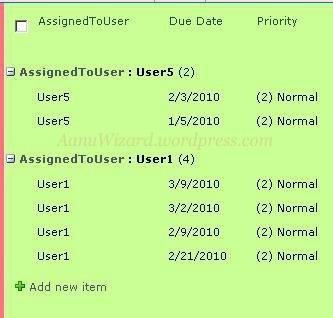
Let’s take an example that we have a Task List. Each task is assigned to an employee by “Assigned To” field. Each task has a DueDate set on it.

Now we need to make a view that only managers can view. This view should show all tasks those have their due date more than past 7 days.

By this view Manager can find all employees who have not completed their tasks. 😉

Hope That helps..!!

And your view will look like this:
How to hide/unhide list using SharePoint Designer 2010

How to hide a list in Designer:

In List settings-> General Settings

1)         Uncheck option “Display this list on quick launch”. [This is necessary]

2)         Check the “Hide from browser”.

3)         Save the list.

Open it SharePoint site in browser and check that your list is hidden now.

How to open hidden list and unhide it in Designer:

1)      Open SharePoint designer 2010.

2)      Click the “All Files” folder at the bottom in left pane.

3)      Right click your hidden list from “All Files -> Lists” folder and choose property.

4)      Now you have your hidden list open in SPD.

5)      In List settings-> General Settings: Uncheck the “Hide from browser” and save.

SP2010 List View and CAML : Part 1

In Part 1; I will discuss about achieving List view by file type in CMAL query.

Let’s take an example that we have a Document Library which has different type of documents, images.

<Where>

<eq>

<FieldRef Name=”DocIcon”/>

<Value Type=”Computed”> your file type comes here </Value>

</eq>

</Where>

If you want to view all documents then CAML query will be like following:

<Where>

<eq>

<FieldRef Name=”DocIcon”/>

<Value Type=”Computed”> docx</Value>

</eq>

</Where>

Hope That helps..!!