SharePoint 2010: Mobile View :Part 1

How to create mobile view for sharepoint list/library:

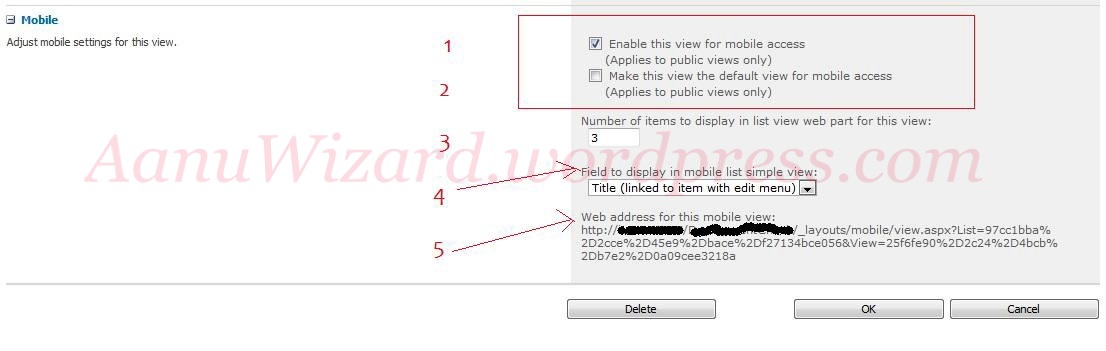
While creating/editiong normal view at the end in Mobile section,Check the checkbox (1) Enable this view for mobile access.

Here you can also choose other configuration like making it default mobile view (2),

How many items to display in one page (3) ,

Option to choose the field to display in simple view (4),

(5) in image is the url for mobile view.
How does it look on mobile :

Hope that helps…

SharePoint 2010 : Creating multiple value lookup to external list using InfoPath

In this post I will discuss about how to create multiple value look up to external list using InfoPath.

SharePoint 2010 has functionality to create lookup columns to other list/external list and you can built this using UI and/or SPD also.

Very important point is using UI or SPD you can’t able to create multiple value lookup to external list But you can achieve this by customizing your form in infopath.

  1. So lets start by opening your list form into InfoPath designer.
  2. Select Multivalue selection control.
  3. Create Data Connection using Data Connection Wizard.
  4. Choose SharePoint Library or List.
  5. Provide your SharePoint Site’s URL
  6. Select your external List.
  7. Choose the fields you want to see in the lookup control.

SP2010 List View and CAML : Part 4 (Filter By AssignedTo = UserGroup)