Article 5 from 30 : Deploying an App to SharePoint 2013 and dealing with deployment issue aka preview bug.

This post is article 5 from the 30 Articles App series for SharePoint

In this post I will discuss about how to deploy an App to SharePoint site and then we will discuss about one *well-know* issue for SP2013 preview.

Let me quickly tell you about the possible ways for how to deploy an App to SharePoint 2013.

  1. You are creating it via Visual Studio 2012 -> hit F5 and your App will be deployed. Simplest and easiest approach for debugging your App.
  2. Publish your App, get .App file ( no wsps ) and upload to your app catalog. Go to the Site where you want to add this app instance. Your newly deployed App should be available when you go to -> Add an App.
  3. If you are using NAPA tools it is pretty much doing the same -(2)
  4. It’s a powershell way 🙂 .

Deployment issue:

If you haven’t noticed yet there is a well-known issue (Mostly a bug in preview), Your Apps sometimes are not installed correctly and you could not retract them as well. You got stuck with this ugly junk hanging to your site!!

Workaround :

“This is a bug in preview” said by Microsoft guys in the Microsoft forum.

How to deal with it then.

(1)  Change the product Id and then re-deployed the App. Your SharePoint environment will think it as a new App.

Newly deploy App may work (but seriously what about the ugly junk left over your site )

here is a link for question : http://social.msdn.microsoft.com/Forums/en-US/appsforsharepoint/thread/430300f6-5682-4a6f-92b8-73a501f4d9b8

(2) How to get rid-off this not-properly installed App and deploy it without changing the product Id

Uninstall this App using PowerShell and below are the steps:

  • Get Instance of Not-properly installed App’ Instance as following :
  • $instance = Get-SPAppInstance -Web http://mysharepointSite/ -AppInstanceId ‘f14876c4-26bd-41ea-8480-7a529882dd60’
  • Uninstall-SPAppInstance – Identity $instance

It did work perfectly for SharePoint hosted apps.

For auto-hosted Apps it didn’t work as it is waiting on some Job to be finished before It can uninstall this App. “Another job exists on this instance. Please retry after that job is done.” this error message appears as below:

Question of the Article :

How to monitor those jobs against your App (specially for not-properly deployed ones) and how to kill them so we can finally uninstall our App?

I would love to hear your thoughts and experience about this.

Note: This article is written for SharePoint 2013 preview.

Article 4 from 30 : Understanding default template for SharePoint hosted Apps

This post is article 4 from the 30 Articles App series for SharePoint

Understanding the Canvas for painting your App


This was the title I was going to give but for the sake of Search engine *discipline* I have not 😉

Let’s start today with the default template that we get for SharePoint Hosted App in SharePoint 2013.
What do you need for this article : SharePoint 2013 + development tools – Visual studio 2012 on your Dev machine.

Step – 1 : Create SharePoint hosted app with the default template.

Visual studio 2012-> create new project-> select Apps from SharePoint 2013 under SharePoint->Apps

choose SharePoint hosted from the hosting options.

20120923-175124.jpg

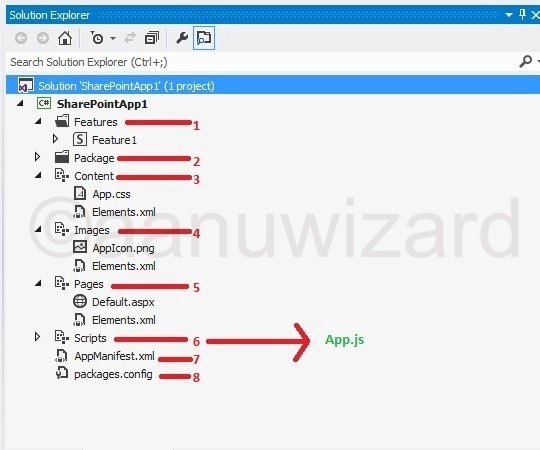
Step – 2:  Understanding each part

20120923-175116.jpg

1 Feature

This folder has all the features.

2 Package and 8 Package.config

Package folder has all the necessary files required to deploy your App.

Packaging in Visual Studio 2012 has a great improvement with NuGet. Packaging take care of bringing the latest resources via Package.config file.

3 Content

App.css – brings custom styling to your App

4 Images

Add your custom images here..

AppIcon.png :this is icon for your App.

5 Pages

Default.aspx -> This is the landing page for your App web.

Our default page simply make a call to SharePointReady() function when DOM is ready and sp.js is loaded.

20120923-175134.jpg

6 Scripts

If you expand the Scripts node you will find some jQuery files and App.js

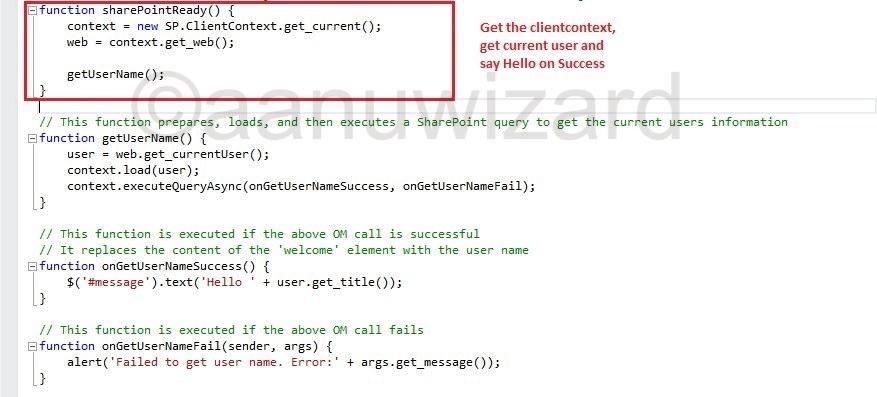
In App.js get down to function: “SharePointReady()

20120923-175159.jpg

It gets the current user name and says Hello !!

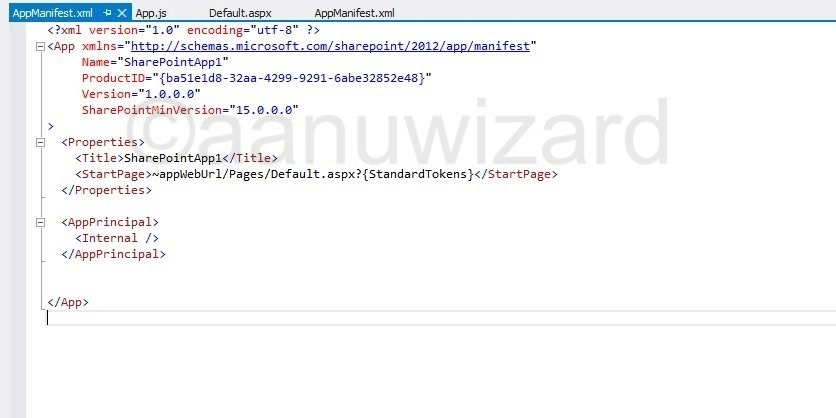
7 AppManifest.xml

This is the file that will register your App within SharePoint environment.

You will get configuration settings to choose App Icon, Title , Properties and what sort of access this App will have within SharePoint site.

You will also get designer for this file.

Code View :

20120923-175143.jpg

Designer View

20120923-175150.jpg

I hope you have enjoyed today’s article.

Start creating an App of your choice and play with it until we meet again for the next Article(5):)

Note: This article is written for SharePoint 2013 preview.
Article 3 from 30 : How to get an App from Office Store for on-premise SharePoint 2013 environment

This post is article-3 from the 30 Articles App series for SharePoint.

Getting the clouds down right into your business

This was the title I was going to give to this article but for sake of Search engine *discipline* I have not 😀

In this post, I will discuss about how we can connect to the Office store from our on-premise SharePoint 2013 Environment and get some Apps.

There are two reasons to pick this topic :

1 )  I want you all to experience the office store and some of the free apps there. 😀
This will give a boost in our mission for this series and a little bit of idea what can we develop as an App for SharePoint 2013.

2 )   I see there are many sharepointers who have not yet experienced this and some of them still have trouble getting this working for on-premise environment.

At the end of this article you should be able to download and install some Apps from the SharePoint / Office store.

Step – 1 :

Any prerequisite for this article ?? yes ,  Article-2: Behind the scene : Configure App Domain for on-premise SharePoint 2013 development environment

No you can’t skip this,  Go back if you have not finished yet !!

Step – 2 :

Check that below services are started and running

Go to Central Administration ->  Manage Services on this server

1) App Management Service.  2) Secure Store Service

Go to Central Administration -> Manage Service Application

App Subscription service

Step – 3 : 

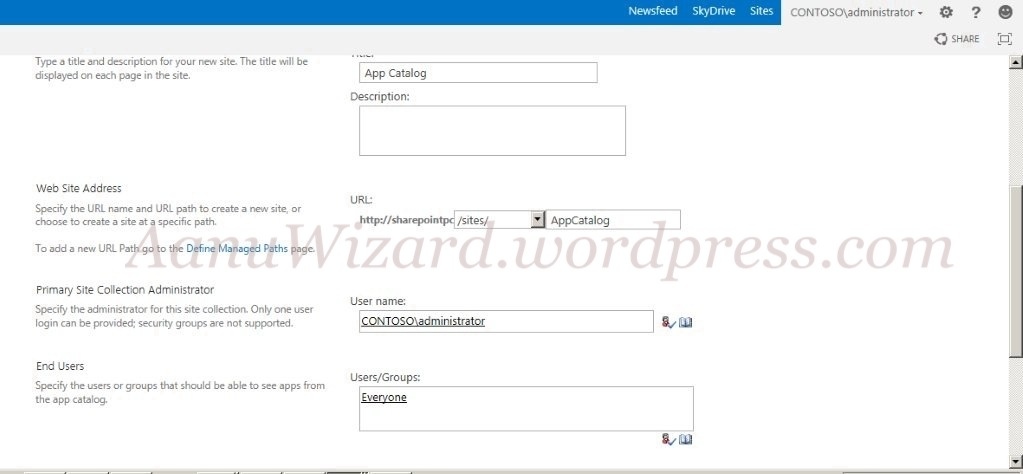
Creating App Catalog site collection.

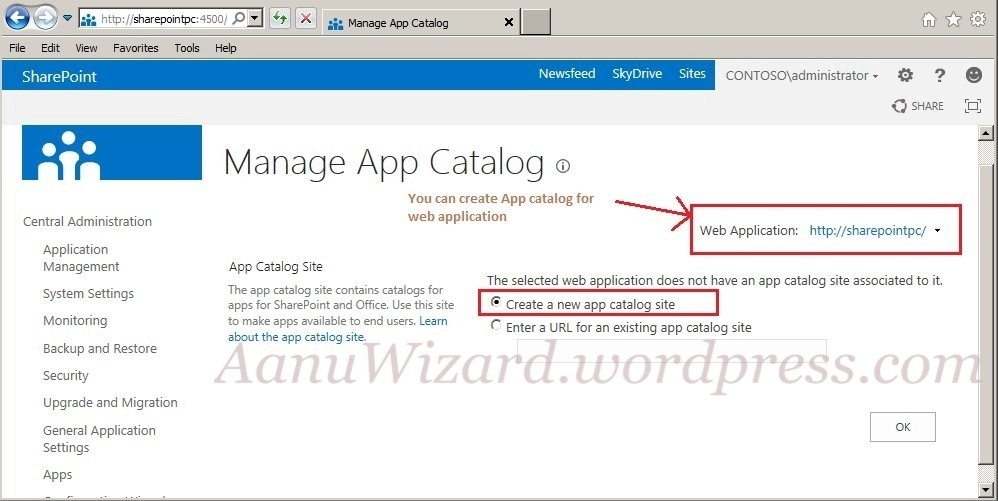
The App Catalog site is a special site collection which is scoped to web application. All apps that you want to make available for a web application have to be in the App Catalog site collection for that web application.

Go to Central Administration -> Apps -> App management -> Manage App Catalog

Step – 4 :

Connecting to Office App Store finally

Go to App Catalog -> right corner ‘Settings’-> Add an App

Select SharePoint Store from Left Navigation [ This will take you to the Microsoft’ official Office store. ]

If you are getting below error then choose language and currency.

Again error !! All the apps are disabled this time with the message contact your administrator…!!

You need to log-in with valid Microsoft account (new name for live ID ) !! Ok now we are ready to explore the App store!! 🙂

Question of the article : Can we use the existing App Catalog for more than one web application ? If yes, are there any limitations or drawback for doing it ? If you figure out the answer or you have an opinion please share in comments.

I leave you now, have some fun with the App Store till we meet again for the next Article (4) 🙂

Note: This article is written for SharePoint 2013 preview.