Article 13 from 30 : How to use Chrome Control for SharePoint app

This post is article 13 from the 30 Articles App series for SharePoint

Today, I will discuss about what is chrome control and how can you use it with SharePoint Apps?

What is Chrome Control?

Chrome Control gives the navigation header of any specific site. and so it does allow your app to show navigation header for  host-web in your app pages. User will feel familiar while browsing app-pages and the quick links to settings and host web would be handy.

It’s a great way to provide consistent SharePoint navigation into your app.

Where should you use chrome control?

The aspx pages in SharePoint-hosted app will get the top navigation by default from the master page of app web.

The html pages in sharepoint-hosted app and all pages in cloud-hosted app could use Chrome Control.

How can you use it with your SharePoint App pages?

Step -1 : place the html div place holder where you want this to be displayed.

 <div id=”divHostWebSPChrome“></div>

Step -2 : Load necessary SharePoint resources :

Load MicrosoftAjax from http://ajax.aspnetcdn.com/ajax/4.0/1/MicrosoftAjax.js or you can save into your project.

Load jquery-1.7.2.min.js from http://ajax.aspnetcdn.com/ajax/jQuery/jquery-1.7.2.min.js or you can save into your project.

Add reference to jquery-1.6.2.min.js , MicrosoftAjax.js and AppChromeControl.js (this is your custom js file) into HTML head section
Below script will go into the page itself

$(document).ready(
    function () {
        //Get the ShowChrome
        var ShowChrome = decodeURIComponent(getQueryStringParameter('ShowChrome'));

        //Get the host web url.
        var spHostUrl = decodeURIComponent(getQueryStringParameter('SPHostUrl'));

        //Build absolute path to the layouts root with the spHostUrl
        var layoutsRoot = spHostUrl + '/_layouts/15/';

        if (ShowChrome == 'Yes') {
            //Load the SP.UI.Controls.js file to render the App Chrome
            $.getScript(layoutsRoot + 'SP.UI.Controls.js', renderSPChrome);
        }
    });

Step – 3 : Render the Chrome Control
AppChromeControl.js is the file in which I have added my js script to render chrome control.

below code will go into the AppChromeControl.js

//Query String helper function
function getQueryStringParameter(urlParameterKey) {
    var params = document.URL.split('?')[1].split('&');
    var strParams = '';
    for (var i = 0; i < params.length; i = i + 1) {
        var singleParam = params[i].split('=');
        if (singleParam[0] == urlParameterKey)
            return singleParam[1];
    }
}

function renderSPChrome() {
// get host web logo  
 var hostlogourl = decodeURIComponent(getQueryStringParameter('SPHostLogoUrl'));
//Set the chrome options for Help, account, contact etc.
    var options = {
        'appIconUrl': hostlogourl,
        'appTitle': document.title,
        'appHelpPageUrl': 'Help.html?' + document.URL.split('?')[1],
        'settingsLinks': [
            {
                'linkUrl': 'Account.html?' + document.URL.split('?')[1],
                'displayName': 'Account settings'
            },
            {
                'linkUrl': 'Contact.html?' + document.URL.split('?')[1],
                'displayName': 'Contact us'
            }
        ]
    };

    //Load the Chrome Control into divHostWebSPChrome 
    var chromeNavigation = new SP.UI.Controls.Navigation('divHostWebSPChrome', options);
    chromeNavigation.setVisible(true);
}

If you get any trouble in rendering Chrome Control you should check the token and make sure all necessary js files are loaded .
Hope that helps.
Article 12 from 30 : How to use MVC web project for auto-hosted and provider-hosted sharepoint apps

This post is article 12 from the 30 Articles App series for SharePoint

Today, I will discuss about how you can use the MVC4 web project with your provider or Auto hosted app. And so you can take all the advantages of the latest MVC 4 features with SharePoint Apps.

1) Let’s start with auto/Provider hosted App with default template.

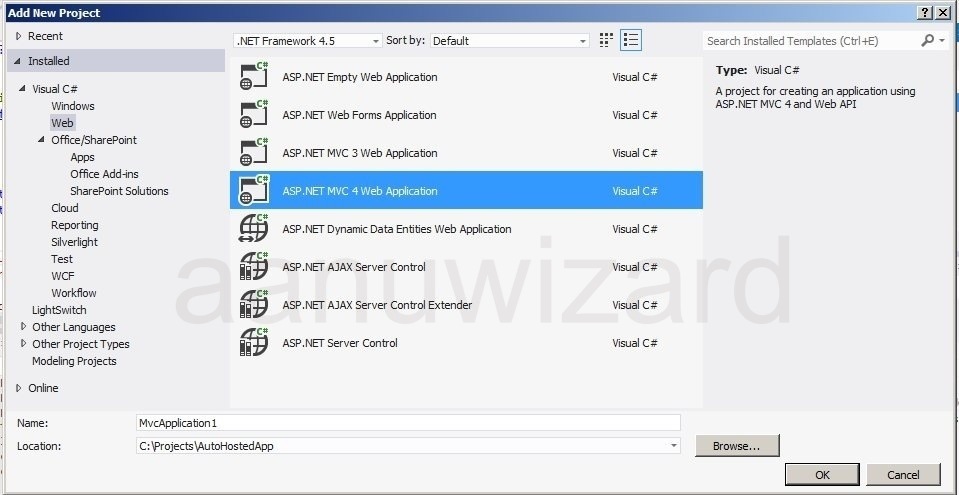
2) Add new project -> select web -> MVC4 web project and create.

20121119-170037.jpg

3) Add TokenHelper.cs file

20121119-170044.jpg

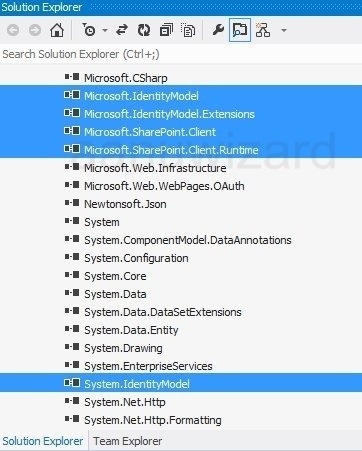
4) Add below references to MVC web project.

  1. Microsoft.Identity
  2. Microsoft.Identity.Extentions you can find it here : C:\Windows\Microsoft.Net\assembly\GAC_MSIL\Microsoft.IdentityModel.Extensions\v4.0_2.0.0.0__69c3241e6f0468ca\Microsoft.IdentityModel.Extensions.dll
  3. Microsoft.SharePoint.client
  4. Microsoft.SharePoint.client.runtime
  5. System.identitymodel

20121119-170050.jpg

5) Changes to web.config file:

Add appropriate clientId and client Secret under -> section.

6) Make sure that your MVC web is SSL enabled.

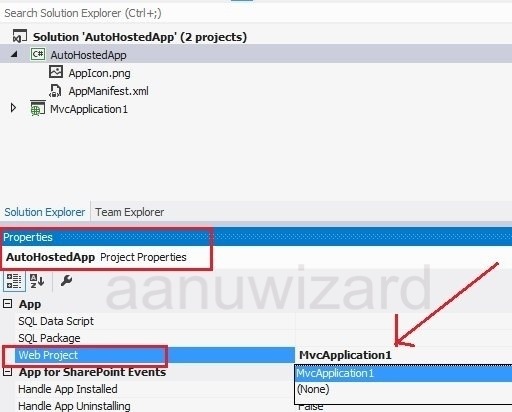
7) Now reference this MVC web project as remoteApp web project for your Auto/Provider Hosted App.

right click the SharePoint App project -> choose properties.

Change the property of SharePoint App project -> Web project => select above mvc web project

20121119-170056.jpg

Done. Now you can use you MVC web project with SharePoint Auto/provider hosted app.

Hope that helps..!!

Article 11 from 30 : Understanding default template for provider-hosted and Auto-hosted apps

This post is article 11 from the 30 Articles App series for SharePoint

As you go further with developing apps for SharePoint, soon you will realize the limitation of SharePoint-Hosted App and you would like to step into provider/Auto-Hosted apps. This option will provide you more flexibility with the price of hosting…:P

OK then let’s start today with the default template that we get for Provider-Hosted and Auto-Hosted Apps in SharePoint 2013.

Note : SharePoint 2013 RTM is out but the VS2012 developer tools has not been upgraded yet; so this article is written for SP2013 preview version.

Step – 1 : Create auto-hosted & provider-hosted app with the default template.

Visual studio 2012-> create new project-> select Apps from SharePoint 2013 under SharePoint->Apps

choose the hosting options.

20120923-175124.jpg

Step – 2: Understanding both templates

20121104-154409.jpg

As you compare both , there isn’t any difference in project structure between provider and auto-hosted apps.
In both option, the app web is generated with default page and “TokenHelper.cs” files.

When you chose any of these option, an app web project is created. The main difference is where you host this web application and how do you reference it to your SharePoint app.

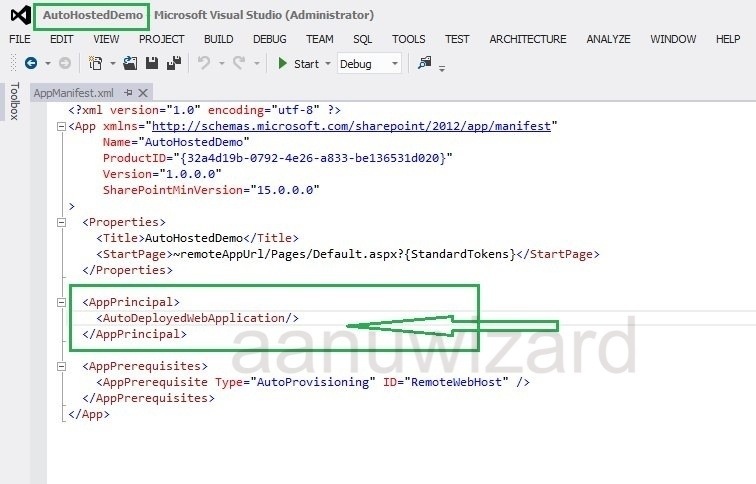
Below is what we get with auto-hosted app-manifest file.

20121104-154348.jpg

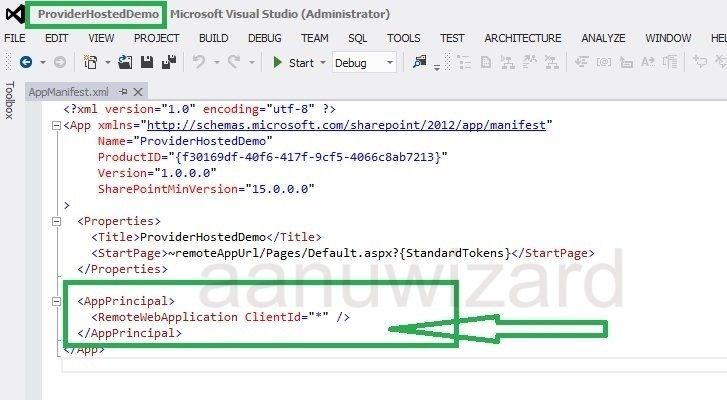
Below is what we get for provider-hosted app-manifest.

20121104-154358.jpg

AppPrincipal will tell you that this app is auto-hosted or provider-hosted.

When you chose the provider-hosted app, you should provide the exactly same client id that you have in your referenced app-web.

And by carefully changing the values in app-manifest file you can easily convert your app from provider-hosted to auto-hosted and vice-verse.

Provider-hosted app webs are hosted to any ISV providers and auto-hosted are hosted on windows-azure.

I hope today’s article will give you good understanding about the project structure of provider and auto-hosted apps.

Be more flexible in architecture and development of your apps with hosting outside of SharePoint.

Have a happy reading and don’t forget to come back for the next article.