In this post, I will be discussing about changing width of list column.
SharePoint auto calculate the column width depends on the content at time of rendering the page.
Here I am taking an example of list column with very long header.
- Open your view/AllItems.aspx in SharePoint Designer.
- Get cursor to your column in design mode and drag it to desired width you want.
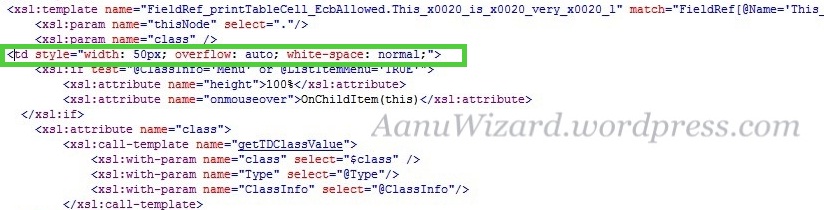
- Delete Nowrap=’Nowrap’ for this column and add below highlighted style.

This is how the fixed width column will render:

Hope that helps…!!

 aanuwizard.com
Thanks for this information. I wonder if you might also know how I can force multi-line headings. I’m a newbie so this might be a stupid question. I have several columns that have long descriptions that would look much nicer if I could break it into 2 or 3 lines – like I do in Excel with the ALT-Enter key.
Thanks again,
Lonnie
Hi Aanu,
I have created couple of views for list on filters. Now I want to modify the style of view like
1) make header text heading bold and give some background.
2) I want to hide the sort menu which appears with header headings.
Would you like to tell me how can I do these things.
Thank you so much for the code above which I have now got working OK in the preview in Sharepoint Designer
However, when I try loading the view in IE8 or Firefox, every modification I have made to customise the view works APART from the custom column widths and header wrapping !
Is there anything else I need to fix ?
followed the steps you mentioned for two different column types (calculated and multiple lines of text) under two different lists but the result is not getting reflected as intended. Please help.
Good Post. However I am not able to see my changes in Internet Explorer after I update the code in Designer.
Same here. Changes visible in Designer but not on in IE.
Hi, just set style=” white-space:normal; min-width:150px; “. This works in IE but not in Sharepoint Designer. But this is what we want.
Thanks George, that works.
Thanks you so much, i tried annu’s code it dint work but i after that i tried putting min width stuff and it worked. But i have to thanks ANNU.
Thank you for making our life easy.
What style tags are you supposed to edit for this?
In my .aspx I have a bunch of <style=" tags which one do I edit? Should it be only for the ones with columns that I want to adjust? How should I know where to put that line?
Saintly!
Thanks a lot George and Aanu!! this works..
Thanks so much Aanu. I originally had the same issue others are having, where this works in Designer, but not the browser (I tried IE and FireFox). I opened the code in advanced mode, and copied it all into Dreamweaver (only because I like Dreamweaver). I changed the overall table from the default 100% to 1200 pixels (1″ = 100px approx).
After doing that – in Designer, while editing in advanced mode, click on the column title, and simply enter a bunch of spaces with the space bar The space added will reflect in the browser.
Thanks for this information. Your post has helped with my job. I described your idea on my site
Simple changes like this are why people hate Sharepoint.
Ditto that!!!
I had tried the steps you had mentioned but still I am unable to get success in my attempt to resize list columns.
Thank you. This worked out great!
A different approach is to use the same techniques for customising the appearance of a column using XSLT.
If you create an xlst file and deploy it to C:\Program Files\Common Files\Microsoft Shared\Web Server Extensions\14\TEMPLATE\LAYOUTS\XSL. The name of the file is not relevant – I called it fldtypes_[name].xsl.
The template is copied from the fldtypes.xsl SharePoint file and is a section which targets the column header. The copied section is changed so that it only matches the name of the specific column (the @Name = ‘Flag’) and the specific width is specified in the ‘th’ element (50px) in this instance.
This is a nice way to do it as you can include this in a solution with the file in a mapped sharepoint folder.
ms-vh
ms-vh2
number
x:string
This works easily and perfectly… thanks
Any chance you’ve mastered this for 2013? There is no design mode and I don’t see anything in the code for allitems.aspx about overflow or nowrap. I guess it’s referencing some sort of style sheet, but since I’m not a programmer by trade (just a sharepoint content manager), it might be over my head.
Ashley,
Have you figured it out in SharePoint 2013?
Is there a way to adjust the column width on views that have been set up other than the Allitems.aspx? They seem to reference the column but not sure if something can be added to keep the column width that was set in AllItems. Thanks!
It doesn’t work for me. When I edit the field it shows the reduced width but as I save the data it takes content’s full width. Need a solution
Hi. I’ve tried these steps and I can get the column width to change on my site however, when I add an item to the list- the column just expands again. The columns I am trying to make smaller are the ‘Created By’ and ‘Modified By’ columns. My organization uses very long display names in Active Directory so the names in these columns are very long and seem to stretch out the columns. But like I said, when I dont have any items in the list- these two columns are set to the width I gave them in SP Designer. I’ve tried different variations of the ‘overflow’ and ‘white-space’ functions to no avail. Does anyone know what could be causing this or if theres a way to fix it? Thanks.