Article 6 from 30 : Benefits of SharePoint 2013 App Model with an Entrepreneur’s eye

This post is article-6 from the 30 Articles App series for SharePoint.

No I am not going to compare the App model with traditional solutions and tell what you can or you can’t …. That’s your fight..  Go win it!! (We may explore this in future..!!  🙂 )

I don’t say that farm and sandboxes solution have any less importance or they are going away from our SharePoint world. They are still heroes and they will be when time comes.

My aim for today’s article is to convey the message about how much the App model in SharePoint is powerful for business and how much value it can add for everyone involved in this SharePoint world…!!

Small or Big business (SharePoint End-users – The Consumers ) :
They can now have super easy way to get the custom solution they want from App Market aka Office store.
They will not face any hidden charge for the development.
They can get instant access to whatever they buy and install it:) (Zero waiting time )
They need to hire less It and dev staff if they are happy with what’s available

Entrepreneurs (Individuals and team => App developers + Architects ) :
They can approach to the Target customers via App Store
This will help saving a lot of efforts in sales and marketing.
There is no head-ache for requirement changing horrors.
Better chance with more flexibility to execute their dreams

IT Guys ( SharePoint admins) :
They can trust the Microsoft’s Approval process that approved App will not damage their farm.
Safely deploy and add/upgrade this little extension (an App) to their SP environment.
Less worry for Upgrade and *Environmental* issues
Anytime they think that the Apps are crap or no more useful now, they can delete the app web and all those junk will be into the bin..

NON-SharePoint programmers:
Guys, yes the world is getting smaller and there is still space to welcome more competitors 😉 in the community.
So the new App Model will allow non-SharePointers [ web-developer, Js developer, you bet Open Source Dev hell yeah ;)] to enter and create some charm.


One more thing I will add on this which is personal thought :

“You have to have a very strong vision for what you want to achieve in the end to get most out of this App Model.”

I hope you have enjoyed today’s article and it has added some value to your reading.

Article 5 from 30 : Deploying an App to SharePoint 2013 and dealing with deployment issue aka preview bug.

This post is article 5 from the 30 Articles App series for SharePoint

In this post I will discuss about how to deploy an App to SharePoint site and then we will discuss about one *well-know* issue for SP2013 preview.

Let me quickly tell you about the possible ways for how to deploy an App to SharePoint 2013.

  1. You are creating it via Visual Studio 2012 -> hit F5 and your App will be deployed. Simplest and easiest approach for debugging your App.
  2. Publish your App, get .App file ( no wsps ) and upload to your app catalog. Go to the Site where you want to add this app instance. Your newly deployed App should be available when you go to -> Add an App.
  3. If you are using NAPA tools it is pretty much doing the same -(2)
  4. It’s a powershell way 🙂 .

Deployment issue:

If you haven’t noticed yet there is a well-known issue (Mostly a bug in preview), Your Apps sometimes are not installed correctly and you could not retract them as well. You got stuck with this ugly junk hanging to your site!!

Workaround :

“This is a bug in preview” said by Microsoft guys in the Microsoft forum.

How to deal with it then.

(1)  Change the product Id and then re-deployed the App. Your SharePoint environment will think it as a new App.

Newly deploy App may work (but seriously what about the ugly junk left over your site )

here is a link for question : http://social.msdn.microsoft.com/Forums/en-US/appsforsharepoint/thread/430300f6-5682-4a6f-92b8-73a501f4d9b8

(2) How to get rid-off this not-properly installed App and deploy it without changing the product Id

Uninstall this App using PowerShell and below are the steps:

  • Get Instance of Not-properly installed App’ Instance as following :
  • $instance = Get-SPAppInstance -Web http://mysharepointSite/ -AppInstanceId ‘f14876c4-26bd-41ea-8480-7a529882dd60’
  • Uninstall-SPAppInstance – Identity $instance

It did work perfectly for SharePoint hosted apps.

For auto-hosted Apps it didn’t work as it is waiting on some Job to be finished before It can uninstall this App. “Another job exists on this instance. Please retry after that job is done.” this error message appears as below:

Question of the Article :

How to monitor those jobs against your App (specially for not-properly deployed ones) and how to kill them so we can finally uninstall our App?

I would love to hear your thoughts and experience about this.

Note: This article is written for SharePoint 2013 preview.

Article 4 from 30 : Understanding default template for SharePoint hosted Apps

This post is article 4 from the 30 Articles App series for SharePoint

Understanding the Canvas for painting your App


This was the title I was going to give but for the sake of Search engine *discipline* I have not 😉

Let’s start today with the default template that we get for SharePoint Hosted App in SharePoint 2013.
What do you need for this article : SharePoint 2013 + development tools – Visual studio 2012 on your Dev machine.

Step – 1 : Create SharePoint hosted app with the default template.

Visual studio 2012-> create new project-> select Apps from SharePoint 2013 under SharePoint->Apps

choose SharePoint hosted from the hosting options.

20120923-175124.jpg

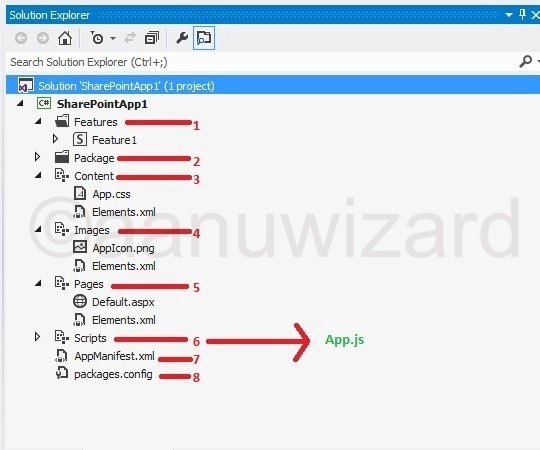
Step – 2:  Understanding each part

20120923-175116.jpg

1 Feature

This folder has all the features.

2 Package and 8 Package.config

Package folder has all the necessary files required to deploy your App.

Packaging in Visual Studio 2012 has a great improvement with NuGet. Packaging take care of bringing the latest resources via Package.config file.

3 Content

App.css – brings custom styling to your App

4 Images

Add your custom images here..

AppIcon.png :this is icon for your App.

5 Pages

Default.aspx -> This is the landing page for your App web.

Our default page simply make a call to SharePointReady() function when DOM is ready and sp.js is loaded.

20120923-175134.jpg

6 Scripts

If you expand the Scripts node you will find some jQuery files and App.js

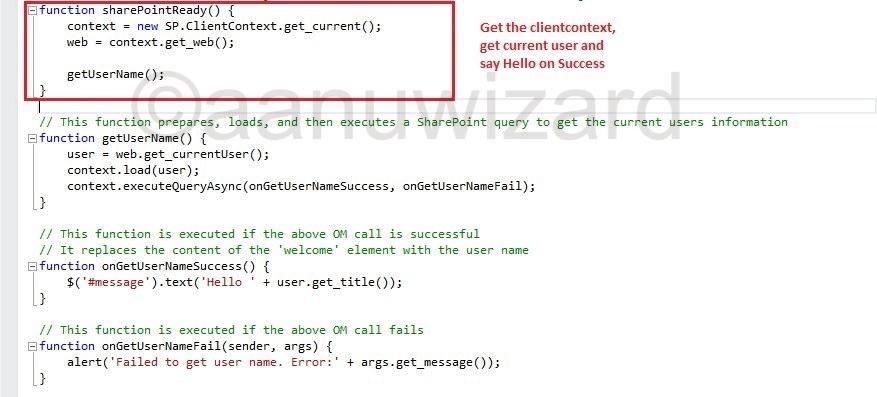
In App.js get down to function: “SharePointReady()

20120923-175159.jpg

It gets the current user name and says Hello !!

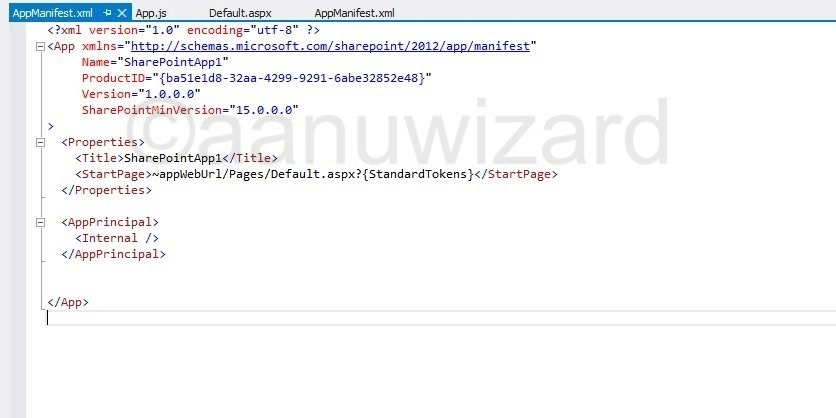
7 AppManifest.xml

This is the file that will register your App within SharePoint environment.

You will get configuration settings to choose App Icon, Title , Properties and what sort of access this App will have within SharePoint site.

You will also get designer for this file.

Code View :

20120923-175143.jpg

Designer View

20120923-175150.jpg

I hope you have enjoyed today’s article.

Start creating an App of your choice and play with it until we meet again for the next Article(5):)

Note: This article is written for SharePoint 2013 preview.