Browsers supported by NAPA tools Office 365 preview

This is an initial Draft for my experience of NAPA (*preview *) tools with different browsers.

I have been using NAPA now and then since almost a month but only with IE9.

Today I decided to try out a few other browsers and below is the outcome for me.

IE (9.0.8112.16421): As I said, NAPA works like a charm….!! 🙂

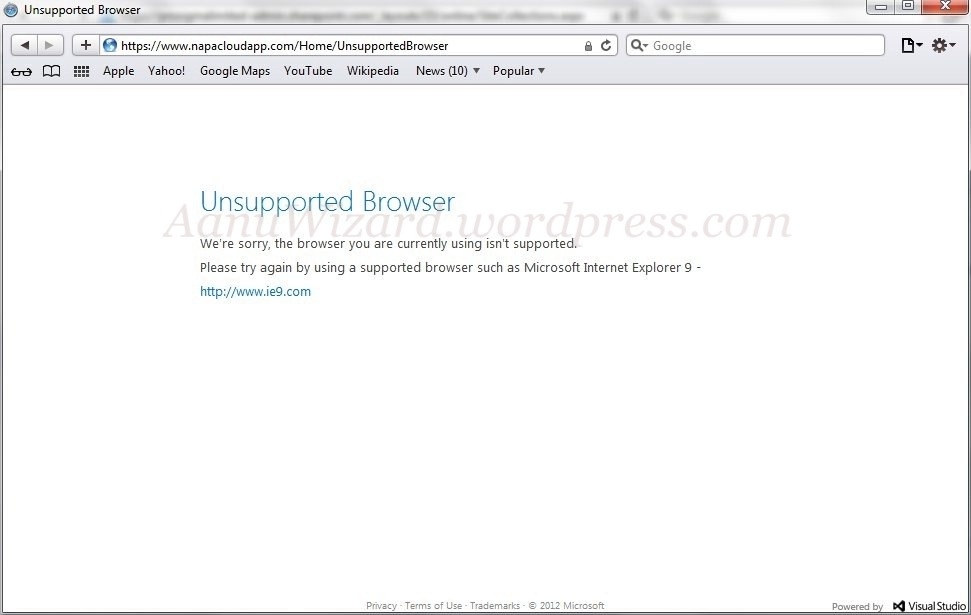
Safari (5.1.7) : Unsupported Browser error as following

on web –> Unsupported browser

on iPad -> Unsupported browser (expected ..!!)

NAPA is truly brilliant idea and execution !! I would just dream of using NAPA on my iPad  if it worked in safari ?? OR Do I have to buy windows 8 tablet for that ?? 😛
20120907-010341.jpg

Firefox  (14.0.1) :  very slow… a long pause with the below message & then my browser crash…!! [tried this scenario about 3-4 times including restart ]

So I guess there is a support for Firefox but something is not working properly..!!

20120907-010333.jpg

Chrome (21.0.1180.89) :  NAPA works fine here too..!!

Please share your experience and views on this.

P.S. There may be update(s) on more findings about other  & above browsers !!

================= UPDATE : (added on 11 Sept 2012) : START  ================

Firefox 15.0.1: NAPA tools works absolutely fine.

I still have Firefox 14.0.1 on my other machine  (I may try to find error message or any log file later for it ) ….  But upgrading to the latest version for any browser should be the best practice.

I see NAPA as an opportunity to develop *anywhere* if you got the supported browser and internet of course 😛

As Mark says (referring to the comments for this post) NAPA will work with Windows 8 ( tablet ? ) with IE10 which is great !! ( you can experience IE10 RTM with Windows 8 or with windows server 2012, it’s not available for direct access otherwise at the moment  )

As I remember Mozilla has rejected the idea of crafting a version of Firefox for the iOS ( iPhone/iPad ) long time ago; and NAPA *preview* does not support safari itself … so I guess no NAPA on iPad; But for Android there is a version of Firefox and so I guess NAPA should work there..!!

Even though I am not a big fan of Safari web browser, I think making it work in apple & android tablets (*Usability*) would be definitely worth it.

I am not sure it is designed to work with tablets but I will give a try with Windows 8 tablet (don’t have one yet ) & firefox on Android. So stay tune for next update 🙂

Oh and don’t miss the comments for this post.

================ UPDATE : (added on 11 Sept 2012) : END ================

I have created a thread at microsoft forum for this : http://social.msdn.microsoft.com/Forums/en-US/appsforsharepoint/thread/b71e2900-abc6-443f-9aa4-4580aa5c6b45 ; Please give your feedback there to help making the product better.
 

Setting up Item level permission for a list item or document in sharepoint 2013

Go to Document Library / List

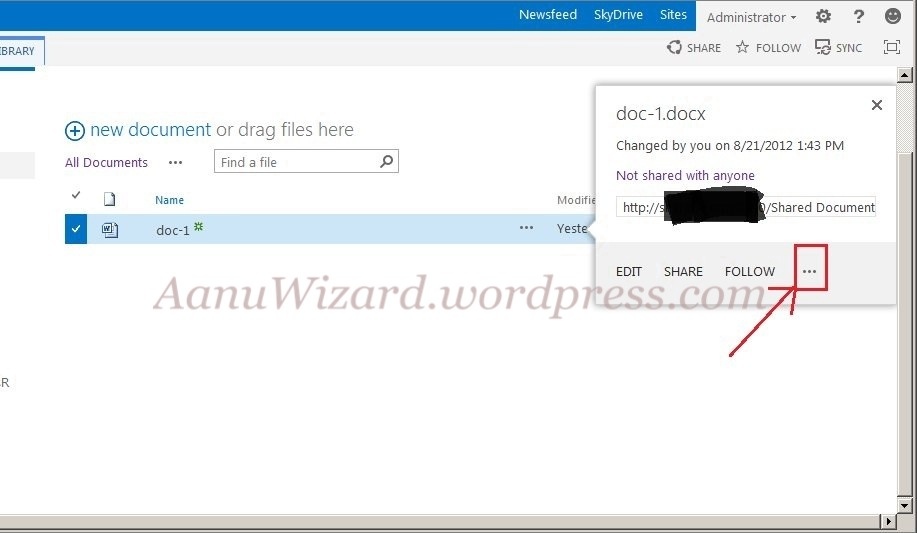
Select Individual item/document

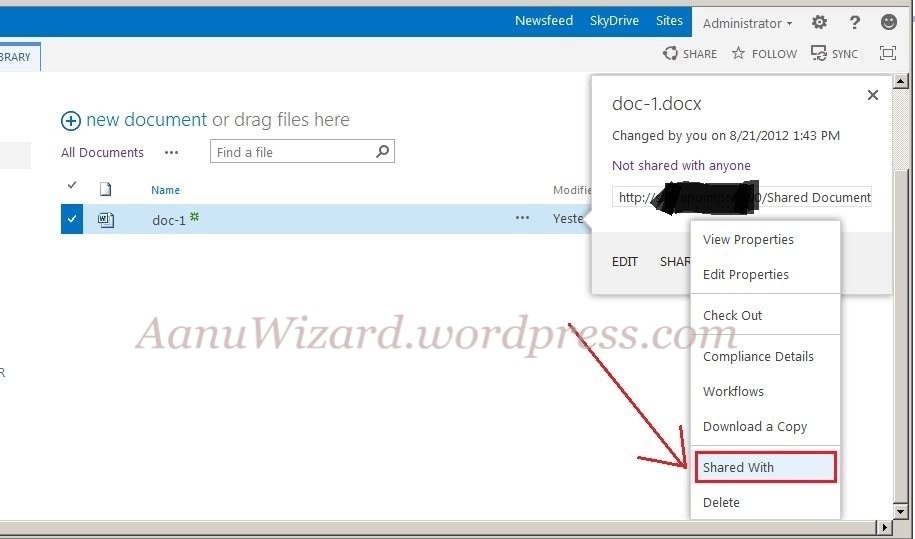
Click on “…” appears on the popup menu

20120823-000803.jpg

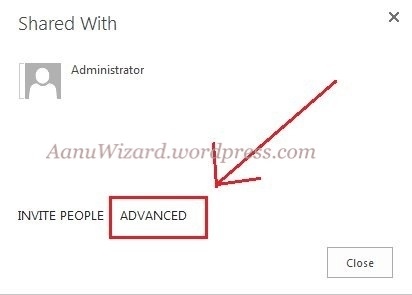
Choose “Shared with”

20120823-000756.jpg

Click “Advanced” option

20120823-000810.jpg

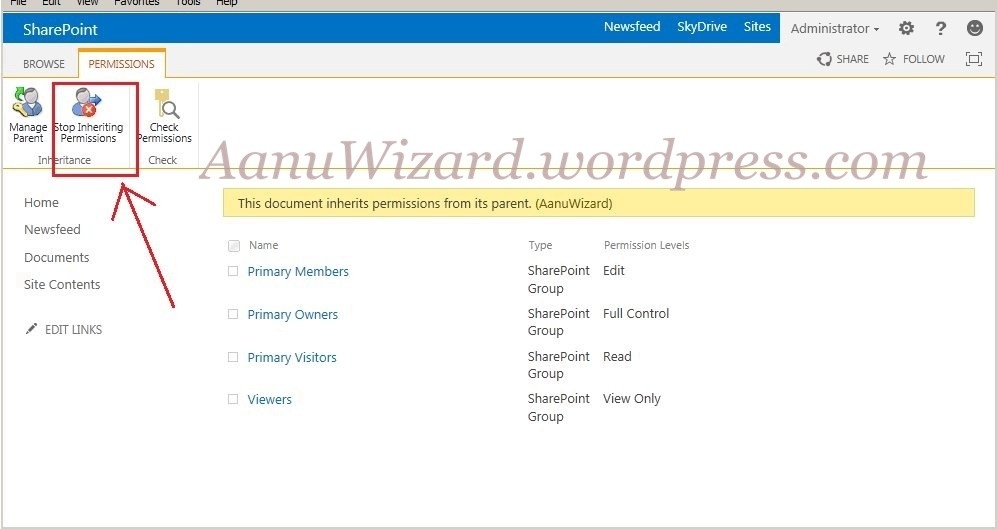
Click “stop inheriting “.

20120823-000818.jpg

20120823-000829.jpg

Now delete or grant permissions as per your need. Done.

20120823-000836.jpg

Behind the scene : Configure App Domain for on-premise SharePoint 2013 development environment

This post is article-2 from the 30 Articles App series for SharePoint.

In this post, I will discuss about how to create app domain for your on-premise server.

Those who have experienced NAPA on Office 365 Developer preview must have realized that they had the app domain created there from the URLs of the Apps.

OK so now as suppose if you own your own on-premise SharePoint farm and you would like to create and deploy Apps for your organization or you may be a developer creating an App for public Market; You will need to set up an App domain to make this happen!!

Pr-requisite to check for this task:

  1. You have installed SharePoint 2013 preview correctly
  2. Your PC/laptop or VM ( whichever is your on-premise server for you ) should have at least 12GB ram or 8GB +SSD will work as well. There is already enough discussion is going on about the memory requirement for development environment; these are my opinions, this is a beta and there might be more surprises to come so choose wisely.
  3. Verify that the ‘SharePoint Administration and ‘SharePoint Timer services are running.

Just want to tell you if you try to deploy your App through Visual studio without setting up your App domain then you should get below error..!! So do not worry we will get there 🙂

20120804-020557.jpg

if you run into some trouble in part-1 , you better check the available memory first!!

OK then let’s begin !!

Part : 1 – Creating an isolated App Domain

Run following commands on SharePoint management Power Shell:

  1. At this point you should have SharePoint timer services running and a managed farm account created already!
  2. Create your isolated app domain by running the SharePoint Management Shell as an administrator and typing the following command: Set-SPAppDomain “your app domain” ex. Set-SPAppDomain “AanuWizard App Domain”
  3. Check that SPSubscriptionSettingsService and AppManagementServiceInstance services are running by powershell or central Admin site.
  4. Now run following commands on powershell

$account = Get-SPManagedAccount "contoso\sp_farm" 

$appPoolSubSvc = New-SPServiceApplicationPool -Name SettingsServiceAppPool
 -Account $account

$appPoolAppSvc = New-SPServiceApplicationPool -Name AppServiceAppPool 
 -Account $account

$appSubSvc = New-SPSubscriptionSettingsServiceApplication 
 –ApplicationPool $appPoolSubSvc –Name SettingsServiceApp
 –DatabaseName SettingsServiceDB 

$proxySubSvc = New-SPSubscriptionSettingsServiceApplicationProxy
 –ServiceApplication $appSubSvc

$appAppSvc = New-SPAppManagementServiceApplication 
 -ApplicationPool $appPoolAppSvc -Name AppServiceApp 
 -DatabaseName AppServiceDB

$proxyAppSvc = New-SPAppManagementServiceApplicationProxy
 -ServiceApplication $appAppSvc

Set-SPAppSiteSubscriptionName -Name "AanuWizardApp" -Confirm:$false

20120804-020604.jpg

part:2 – Create a DNS domain name

You must create a new domain name in Domain Name Services (DNS) to host the apps. To help improve security, the new domain name should not be a sub domain of the domain that hosts the SharePoint sites.

When an app is provisioned, it needs a unique DNS domain name (for example, in my case :http://app-ef2c916a38e2fe.aanuwizardapps.com). You need a wildcard Canonical Name (CNAME) entry for your DNS domain to support these unique names.

1) Open DNS from Administrative Tools

2) Create ‘ New Zone’ by right clicking the “Forward Lookup Zones”

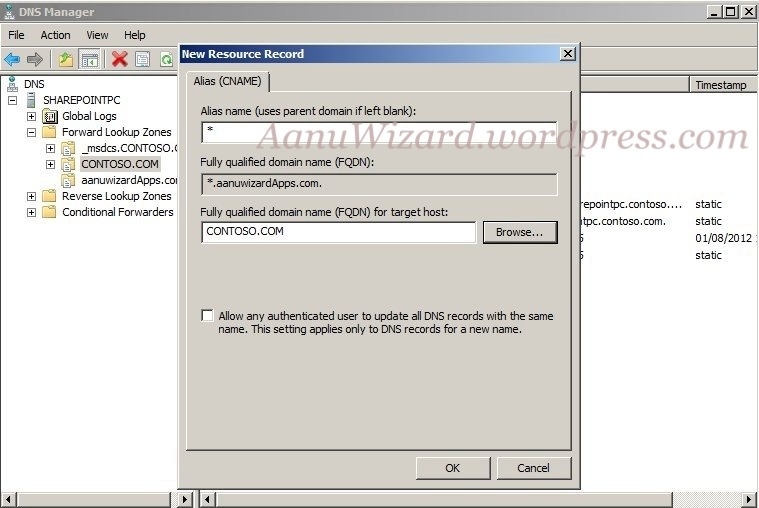
3) you need to create a wildcard alias record for the DNS domain name that allows for individual apps to create unique domain names within your app domain.

20120804-020632.jpg

Choose FQDN for your target host as your server domain -> same as parent; in my case it is “CONTOSO.COM”

20120804-020622.jpg

Once finished it should look like below.

20120804-020642.jpg

4) Change the URL settings as per your preference in Central Administration -> Apps -> Configure App URLs.

20120804-020612.jpg

Create a Developer Site (As you can only deploy your Apps to Developer site)

Now you are through to deploy the Apps on your development server!!

References for this article :

http://msdn.microsoft.com/en-us/library/office/apps/fp179923%28v=office.15%29

http://technet.microsoft.com/en-us/library/fp161236%28v=office.15%29.aspx