Article 15 from 30 : Configuring Server to Server High Trust for provider hosted apps

This post is article 15 from the 30 Articles App series for SharePoint

Today, I will discuss about what is High-Trust Apps and how to configure s-2-s protocol.

What is a High-Trust App?

It is provider-hosted app for on-premise environment use and not proposed for cloud-hosted environment. It uses server-to-server protocol to create “High-trust”. It is considered “high-trust” because it is trusted to use any user identity that the app needs, because the app is responsible for creating the user portion of the access token.

A high-trust app uses a certificate instead of a context token to establish trust.

Apps that use the server-to-server protocol would typically be installed behind the firewall in instances that are specific to each individual company.

How to configure server-to-server high-trust?

Step-1 : Configure an app for use as a high-trust app

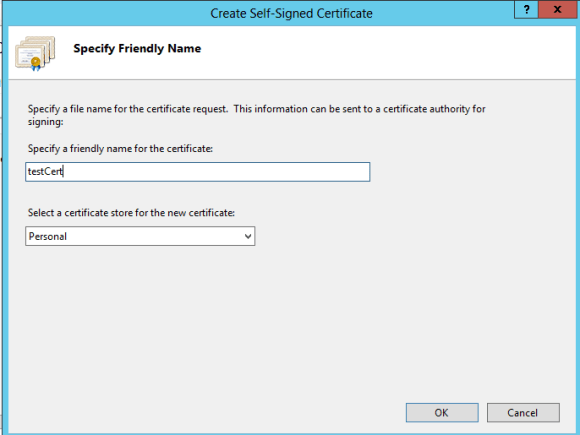
creates and exports a test certificate by using the Create Self Signed Certificate option in IIS.

1-SelfCertificate

create .pfx file ::

Go to IIS Manager -> Choose Server Certificates  -> right-click and choose “Create Self-signed Certificate”.
2-SelfCertificate

select just created certificate ->export the .pfx file

Include ClientSigningCertificatePath and password  for this .pfx file to web.config file of the app.

create .cer file ::

select just created certificate -> double click and choose the “Details” tab -> on bottom right corner click the “Copy to File”

3-SelfCertificate

The certificate export wizard will start and choose don’t export the private key. keep the default values for file format. choose the path for .cer file and export.

4-SelfCertificate

Step-2 : Configure SharePoint 2013 to use high-trust apps
Pre-requisite : you should have configured the App isolation for on-premise environment at this point.

the app management service and user profile application should be started and running

at least one profile is created in the User Profile Service Application as follows


Run following powershell script using SharePoint Management Console:

(1) get appId
$appId = your app id (Guid) here. All letters of the client-id must be of lowercase.

(2) get spweb where you want to deploy your high-trust app
$spurl ="http://yoursharepointSite"
$spweb = Get-SPWeb $spurl

(3) Get the current authentication realm for your SharePoint site
$realm = Get-SPAuthenticationRealm -ServiceContext $spweb.Site

(4) Get the corresponding file to the .cer file you are using for the app => the one we just created in step-1
$certificate = Get-PfxCertificate $publicCertPath

(5) Get the app Id together with the realm value.
$fullAppIdentifier = $appId + '@' + $realm

(6) Create a trusted security token service. This basically fetches metadata from your app and establish trust with it, so that SharePoint 2013 can accept tokens that are issued by your app.
New-SPTrustedSecurityTokenIssuer -Name "High-Trust-App-Name" -Certificate $certificate -RegisteredIssuerName $fullAppIdentifier

(7) Register the app principal with the app management service, so you can grant app permissions.
$appPrincipal = Register-SPAppPrincipal -NameIdentifier $fullAppIdentifier -Site $spweb -DisplayName "High-Trust-App-Name"

Now you have successfully configured server-to-server high trust and the app can use certificate instead of a context token.

Hope you all had a lovely Christmas and wish you all a very happy and healthy new year..!!

Article 14 from 30 : System account can not deploy or purchase an app in SharePoint 2013 RTM

This post is article 14 from the 30 Articles App series for SharePoint

About 25 days ago , SharePoint 2013 RTM was made available to public and before few days Visual Studio 2012 Office tools Preview2 made available so now you are good to go for developing apps for RTM .

Today I will discuss about which account you should use for app deployment for on-premise environment.

I see many people are asking about the deployment issue they are getting while using System Account with SP2013 RTM.

Below is the summary of the error.

Error 1 Error occurred in deployment step ‘Install app for SharePoint’: The System Account cannot perform this action.

Cause of the error :

When you are logged in as system account (local administrator) , and you are trying to install and deploy the SharePoint app above error will appear.

This is a change in SharePoint 2013 RTM that system account are no longer supported to deploy or purchase any app from the market. It was supported in RT but it’s now prohibited because of security reason.

Woraround / Solution

  1. Create a new account in your domain let say CONTOSO/SPApp_Admin
  2. This account should be local admin
  3. This account should also be farm admin [ Farm administrator can be added from central admin -> site settings -> People -> Fram Administrator -> Add CONTOSO/SPApp_Admin ]
  4. Now login to your VM/ SharePoint Dev machine as  CONTOSO/SPApp_Admin
  5. You are good to go for deploying app to your local farm using visual studio

Hope that helps.

Article 13 from 30 : How to use Chrome Control for SharePoint app

This post is article 13 from the 30 Articles App series for SharePoint

Today, I will discuss about what is chrome control and how can you use it with SharePoint Apps?

What is Chrome Control?

Chrome Control gives the navigation header of any specific site. and so it does allow your app to show navigation header for  host-web in your app pages. User will feel familiar while browsing app-pages and the quick links to settings and host web would be handy.

It’s a great way to provide consistent SharePoint navigation into your app.

Where should you use chrome control?

The aspx pages in SharePoint-hosted app will get the top navigation by default from the master page of app web.

The html pages in sharepoint-hosted app and all pages in cloud-hosted app could use Chrome Control.

How can you use it with your SharePoint App pages?

Step -1 : place the html div place holder where you want this to be displayed.

 <div id=”divHostWebSPChrome“></div>

Step -2 : Load necessary SharePoint resources :

Load MicrosoftAjax from http://ajax.aspnetcdn.com/ajax/4.0/1/MicrosoftAjax.js or you can save into your project.

Load jquery-1.7.2.min.js from http://ajax.aspnetcdn.com/ajax/jQuery/jquery-1.7.2.min.js or you can save into your project.

Add reference to jquery-1.6.2.min.js , MicrosoftAjax.js and AppChromeControl.js (this is your custom js file) into HTML head section
Below script will go into the page itself

$(document).ready(
    function () {
        //Get the ShowChrome
        var ShowChrome = decodeURIComponent(getQueryStringParameter('ShowChrome'));

        //Get the host web url.
        var spHostUrl = decodeURIComponent(getQueryStringParameter('SPHostUrl'));

        //Build absolute path to the layouts root with the spHostUrl
        var layoutsRoot = spHostUrl + '/_layouts/15/';

        if (ShowChrome == 'Yes') {
            //Load the SP.UI.Controls.js file to render the App Chrome
            $.getScript(layoutsRoot + 'SP.UI.Controls.js', renderSPChrome);
        }
    });

Step – 3 : Render the Chrome Control
AppChromeControl.js is the file in which I have added my js script to render chrome control.

below code will go into the AppChromeControl.js

//Query String helper function
function getQueryStringParameter(urlParameterKey) {
    var params = document.URL.split('?')[1].split('&');
    var strParams = '';
    for (var i = 0; i < params.length; i = i + 1) {
        var singleParam = params[i].split('=');
        if (singleParam[0] == urlParameterKey)
            return singleParam[1];
    }
}

function renderSPChrome() {
// get host web logo  
 var hostlogourl = decodeURIComponent(getQueryStringParameter('SPHostLogoUrl'));
//Set the chrome options for Help, account, contact etc.
    var options = {
        'appIconUrl': hostlogourl,
        'appTitle': document.title,
        'appHelpPageUrl': 'Help.html?' + document.URL.split('?')[1],
        'settingsLinks': [
            {
                'linkUrl': 'Account.html?' + document.URL.split('?')[1],
                'displayName': 'Account settings'
            },
            {
                'linkUrl': 'Contact.html?' + document.URL.split('?')[1],
                'displayName': 'Contact us'
            }
        ]
    };

    //Load the Chrome Control into divHostWebSPChrome 
    var chromeNavigation = new SP.UI.Controls.Navigation('divHostWebSPChrome', options);
    chromeNavigation.setVisible(true);
}

If you get any trouble in rendering Chrome Control you should check the token and make sure all necessary js files are loaded .
Hope that helps.