This post is article-2 from the 30 Articles App series for SharePoint.
In this post, I will discuss about how to create app domain for your on-premise server.
Those who have experienced NAPA on Office 365 Developer preview must have realized that they had the app domain created there from the URLs of the Apps.
OK so now as suppose if you own your own on-premise SharePoint farm and you would like to create and deploy Apps for your organization or you may be a developer creating an App for public Market; You will need to set up an App domain to make this happen!!
Pr-requisite to check for this task:
- You have installed SharePoint 2013 preview correctly
- Your PC/laptop or VM ( whichever is your on-premise server for you ) should have at least 12GB ram or 8GB +SSD will work as well. There is already enough discussion is going on about the memory requirement for development environment; these are my opinions, this is a beta and there might be more surprises to come so choose wisely.
- Verify that the ‘SharePoint Administration‘ and ‘SharePoint Timer‘ services are running.
Just want to tell you if you try to deploy your App through Visual studio without setting up your App domain then you should get below error..!! So do not worry we will get there 🙂

if you run into some trouble in part-1 , you better check the available memory first!!
OK then let’s begin !!
Part : 1 – Creating an isolated App Domain
Run following commands on SharePoint management Power Shell:
- At this point you should have SharePoint timer services running and a managed farm account created already!
- Create your isolated app domain by running the SharePoint Management Shell as an administrator and typing the following command: Set-SPAppDomain “your app domain” ex. Set-SPAppDomain “AanuWizard App Domain”
- Check that SPSubscriptionSettingsService and AppManagementServiceInstance services are running by powershell or central Admin site.
- Now run following commands on powershell
$account = Get-SPManagedAccount "contoso\sp_farm"

$appPoolSubSvc = New-SPServiceApplicationPool -Name SettingsServiceAppPool
 -Account $account

$appPoolAppSvc = New-SPServiceApplicationPool -Name AppServiceAppPool
 -Account $account

$appSubSvc = New-SPSubscriptionSettingsServiceApplication
 –ApplicationPool $appPoolSubSvc –Name SettingsServiceApp
 –DatabaseName SettingsServiceDB

$proxySubSvc = New-SPSubscriptionSettingsServiceApplicationProxy
 –ServiceApplication $appSubSvc

$appAppSvc = New-SPAppManagementServiceApplication
 -ApplicationPool $appPoolAppSvc -Name AppServiceApp
 -DatabaseName AppServiceDB

$proxyAppSvc = New-SPAppManagementServiceApplicationProxy
 -ServiceApplication $appAppSvc

Set-SPAppSiteSubscriptionName -Name "AanuWizardApp" -Confirm:$false

part:2 – Create a DNS domain name
You must create a new domain name in Domain Name Services (DNS) to host the apps. To help improve security, the new domain name should not be a sub domain of the domain that hosts the SharePoint sites.
When an app is provisioned, it needs a unique DNS domain name (for example, in my case :http://app-ef2c916a38e2fe.aanuwizardapps.com). You need a wildcard Canonical Name (CNAME) entry for your DNS domain to support these unique names.
1) Open DNS from Administrative Tools
2) Create ‘ New Zone’ by right clicking the “Forward Lookup Zones”
3) you need to create a wildcard alias record for the DNS domain name that allows for individual apps to create unique domain names within your app domain.
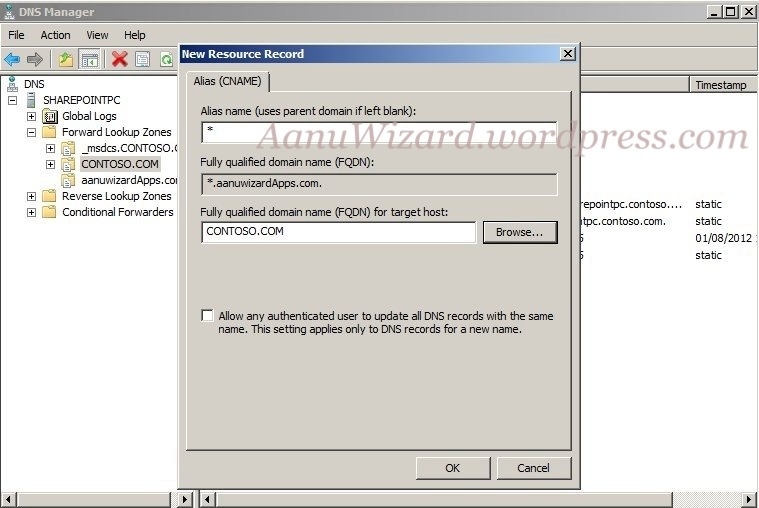
Choose FQDN for your target host as your server domain -> same as parent; in my case it is “CONTOSO.COM”

Once finished it should look like below.

4) Change the URL settings as per your preference in Central Administration -> Apps -> Configure App URLs.

Create a Developer Site (As you can only deploy your Apps to Developer site)
Now you are through to deploy the Apps on your development server!!
References for this article :
http://msdn.microsoft.com/en-us/library/office/apps/fp179923%28v=office.15%29
http://technet.microsoft.com/en-us/library/fp161236%28v=office.15%29.aspx


 aanuwizard.com