Introducing ProConnect – now available in office and windows phone store

I am very pleased to share news with you that “ProConnect” is officially launched and is now available in both office and windows phone store.

Last year, I discovered a need for enterprise level location rich business networking application. I had my vision about what ProConnect will be. I gave myself a challenge to make it reality and have been working on this since then. ProConnect also got very good interests from some of ProSigma’s clients, finally I decided to take it to the next level and make it available to all users‏ from the Office and windows phone store. Today, I am very happy to present you ProConnect.

ProConnect is a secured location based business networking application that helps you keep in touch with your colleagues anywhere!

It is a subscription based service which also offers 1 month free trial.

To discover more and start using ProConnect please go to the office store, install the application, activate your free trial and explore!

ProConnect also comes with supporting windows mobile application for free for you to stay connected while on the move.

ProConnect Features:
• Create, store and share location based updates with your colleagues using checkin
• Create and manage places of interests such as company’s offices, recommended hotels and restaurants, client’s offices, meeting places, conference venues etc.
• Follow places and people and stay in touch with their most recent updates
• Receive real-time notifications of checkin activities
• See your real-time location on the map and find your near-by colleagues and places
• Highly interactive mapping user- interface using open source library
• On the go access on windows phone app.
• Complete peace of mind having all your data at your server (ProConnect store checkin updates in SharePoint lists at your servers)

Office store link :

Windows phone store link :

Visit store link to get more details on ProConnect features.

Please visit http://prosigmaltd.com/ProConnect if you have any query or suggestion related to ProConnect.

Also, feel free to contact for more details on ProConnect.

Stay tuned, more coming soon…
Article 23 from 30 : Troubleshooting High-Trust App

This post is article 23 from the 30 Articles App series for SharePoint

In this article I will be discussing about basic guidelines on troubleshooting tips for High-Trust apps. I assume that you already has good understanding of High-Trust app and how to develop one.

Below are some steps you should consider to look into when you run into problems:

(1)    For Hight-Trust App your remote web’s web.config should have appsetting something like below

<appSettings>

<add key="ClientId" value="your-client-id-guid-in-lowercase"/>

<add key="ClientSecret" value="client-secret"/>

<add key="ClientSigningCertificatePath" value="C:\cert.pfx"/>

<add key="ClientSigningCertificatePassword" value="****"/>

<add key="IssuerId" value="xxxxxxxx-xxxx-xxxx-xxxx-xxxxxxxxxxx"/>

</appSettings>

(2)    Refer to article-15 to know about how to configure high-trust using client-certificate and configuring high-trust.

(3)    App deployed successfully but client context is always null or you are getting 401 unauthorized error

Make sure you are passing valid identity of Logged in user,

Do iisreset after high-trust configuration if necessary

(4)    App deployed successfully but you are getting 403 forbidden error

oAuth requires SharePoint to run HTTPS. So whenever your SharePoint app attempt to make a call using a test certificate, you will get 403 (forbidden) error.

To overcome this issue, simply turn off HTTPS on your development SharePoint environment using following Powershell command:

$serviceConfig = Get-SPSecurityTokenServiceConfig
$serviceConfig.AllowOAuthOverHttp = $true
$serviceConfig.Update()

Hope that helps..!!

Article 22 from 30 : Troubleshooting Provider-Hosted App

This post is article 22 from the 30 Articles App series for SharePoint

In this article I will be discussing about basic guidelines on troubleshooting tips for provider hosted apps. I assume that you already has good understanding of provider hosted app and how to develop one.

Below are some steps you should consider to look into when you run into problems:

(1)    Make sure your remote web is already up and running before you deploy your app.

(2)    Make sure all the service are up and running and they have valid listening endpoints if you are using any remote receivers.

(3)    Make sure that you have valid client id in App manifest file, which must be exactly same as client id in your remote web’s web.config file

(4)    Make sure the client id is in lowercase in (3).

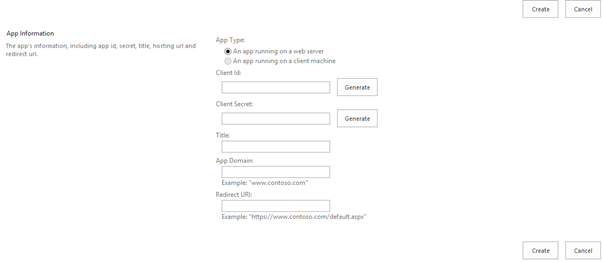
(5)    Make sure you have registered your app with SharePoint. You can register your app from Appregnew.aspx  page. It is available via following url : https://SPServer/Sites/AnySiteCollection/_layouts/15/Appregnew.aspx

Store the client id and secret and use that in (3)

appregnew

(6)    When you are deploying your app to office store you can generate client id, Client Secret from office seller-board.

(7)  Make sure your app has all the necessary permission.

Troubleshooting tips continues for Hight-Trust provider hosted app in next article.

Hope that helps..!!