Article 3 from 30 : How to get an App from Office Store for on-premise SharePoint 2013 environment

This post is article-3 from the 30 Articles App series for SharePoint.

Getting the clouds down right into your business

This was the title I was going to give to this article but for sake of Search engine *discipline* I have not 😀

In this post, I will discuss about how we can connect to the Office store from our on-premise SharePoint 2013 Environment and get some Apps.

There are two reasons to pick this topic :

1 )  I want you all to experience the office store and some of the free apps there. 😀
This will give a boost in our mission for this series and a little bit of idea what can we develop as an App for SharePoint 2013.

2 )   I see there are many sharepointers who have not yet experienced this and some of them still have trouble getting this working for on-premise environment.

At the end of this article you should be able to download and install some Apps from the SharePoint / Office store.

Step – 1 :

Any prerequisite for this article ?? yes ,  Article-2: Behind the scene : Configure App Domain for on-premise SharePoint 2013 development environment

No you can’t skip this,  Go back if you have not finished yet !!

Step – 2 :

Check that below services are started and running

Go to Central Administration ->  Manage Services on this server

1) App Management Service.  2) Secure Store Service

Go to Central Administration -> Manage Service Application

App Subscription service

Step – 3 : 

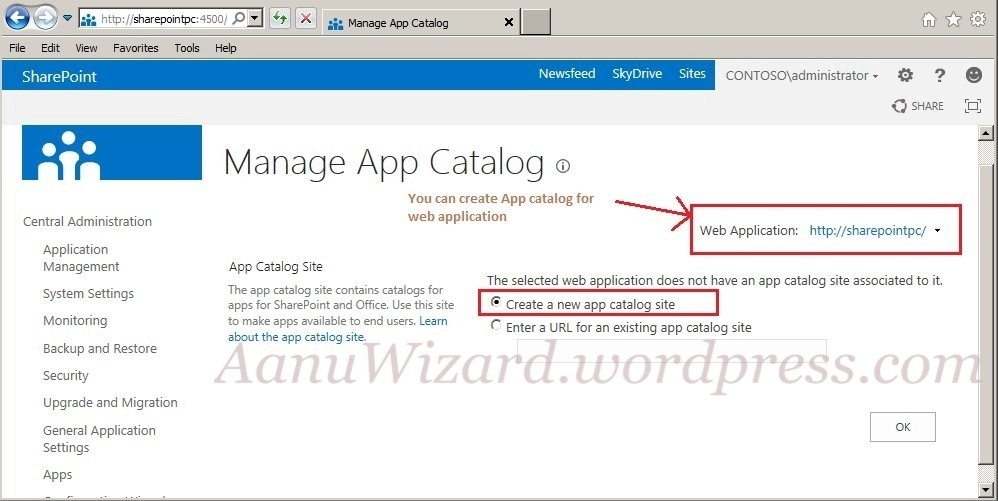
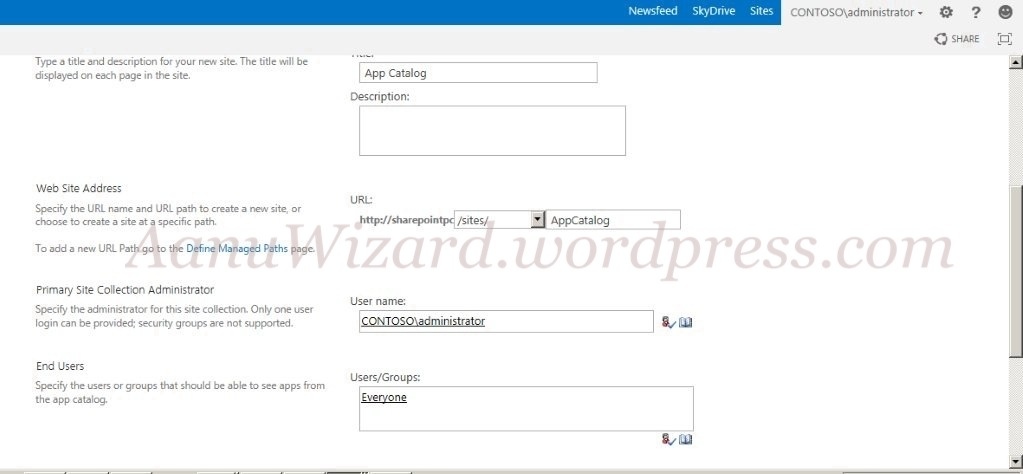
Creating App Catalog site collection.

The App Catalog site is a special site collection which is scoped to web application. All apps that you want to make available for a web application have to be in the App Catalog site collection for that web application.

Go to Central Administration -> Apps -> App management -> Manage App Catalog

Step – 4 :

Connecting to Office App Store finally

Go to App Catalog -> right corner ‘Settings’-> Add an App

Select SharePoint Store from Left Navigation [ This will take you to the Microsoft’ official Office store. ]

If you are getting below error then choose language and currency.

Again error !! All the apps are disabled this time with the message contact your administrator…!!

You need to log-in with valid Microsoft account (new name for live ID ) !! Ok now we are ready to explore the App store!! 🙂

Question of the article : Can we use the existing App Catalog for more than one web application ? If yes, are there any limitations or drawback for doing it ? If you figure out the answer or you have an opinion please share in comments.

I leave you now, have some fun with the App Store till we meet again for the next Article (4) 🙂

Note: This article is written for SharePoint 2013 preview.

30 Articles series for Apps development for SharePoint

With new release of SharePoint 2013, I guess every sharepointer can now endeavor to develop their own apps.

This post is an announcement to tell you that I am going to write a series of 30 articles for developing Apps for SharePoint.

The aim for this series is to help building Apps and here I will focus on some development and design issues of Apps for SharePoint.

I have no plans how I will arrange the series but if you want to join this journey then stay tuned. I only wish that we all have some fun, some learning and we end up creating some amazing Apps.

I will be picking interesting questions from twitter, Facebook page, emails and questions from Microsoft forums as well.

I am inviting you all to share your opinions and expertise on any relevant subjects so this series gets more interesting.

Let’s Begin then

Article – 1: An insight to Apps and App Model in SharePoint 2013

Understand what an App Model for SharePoint 2013 is.

Article – 2: Behind the scene : Configure App Domain for on-premise SharePoint 2013 development environment

Get ready with your development environment.

Article – 3: How to get an App from Office Store for on-premise SharePoint 2013 environment

get some free Apps from the official App store and have fun 😀

Article – 4: Understanding default template for SharePoint hosted Apps

Article – 5: Deploying an App to SharePoint 2013 and dealing with deployment issue aka preview bug.

Article – 6: Benefits of SharePoint 2013 App Model with an Entrepreneur’s eye

Article – 7: What is TypeScript? Shall I use it for SharePoint 2013 Apps?

Article – 8: Creating an App-Part for SharePoint 2013 Apps

Article – 9: Is it possible to create Mobile App for the SharePoint 2013 app web?

Article – 10: Creating an Custom Action for SharePoint 2013 Apps

Article – 11: Understanding default template for provider-hosted and Auto-hosted apps

Article – 12: How to use MVC web project for auto-hosted and provider-hosted SharePoint apps

Article – 13: How to use Chrome Control for SharePoint app

Article – 14: System account can not deploy or purchase an app in SharePoint 2013 RTM

Article – 15: Configuring Server to Server High Trust for provider hosted apps

Article – 16: Using Remote Receivers to handle app events

Article – 17: Using Remote Receivers to handle spappweb list/listItems events

Article – 18: Tenancies and app scope for SharePoint Apps

Article – 19: Understanding Cross Domain calls

Article – 20: Implementing Cross Domain calls

Article – 21: What can be included in SharePoint App?

Article – 22: Troubleshooting Provider-Hosted App

Article – 23: Troubleshooting High-Trust App

Article – 24: App permissions – I

Article – 25: App permissions – II

Article – 26: App authorization

Article – 27: updating an app

Article – 28: handling App Upgraded event

Article – 29: SPC14 summary on App Development

Article – 30: Licensing your app

Behind the scene : Configure App Domain for on-premise SharePoint 2013 development environment

This post is article-2 from the 30 Articles App series for SharePoint.

In this post, I will discuss about how to create app domain for your on-premise server.

Those who have experienced NAPA on Office 365 Developer preview must have realized that they had the app domain created there from the URLs of the Apps.

OK so now as suppose if you own your own on-premise SharePoint farm and you would like to create and deploy Apps for your organization or you may be a developer creating an App for public Market; You will need to set up an App domain to make this happen!!

Pr-requisite to check for this task:

  1. You have installed SharePoint 2013 preview correctly
  2. Your PC/laptop or VM ( whichever is your on-premise server for you ) should have at least 12GB ram or 8GB +SSD will work as well. There is already enough discussion is going on about the memory requirement for development environment; these are my opinions, this is a beta and there might be more surprises to come so choose wisely.
  3. Verify that the ‘SharePoint Administration and ‘SharePoint Timer services are running.

Just want to tell you if you try to deploy your App through Visual studio without setting up your App domain then you should get below error..!! So do not worry we will get there 🙂

20120804-020557.jpg

if you run into some trouble in part-1 , you better check the available memory first!!

OK then let’s begin !!

Part : 1 – Creating an isolated App Domain

Run following commands on SharePoint management Power Shell:

  1. At this point you should have SharePoint timer services running and a managed farm account created already!
  2. Create your isolated app domain by running the SharePoint Management Shell as an administrator and typing the following command: Set-SPAppDomain “your app domain” ex. Set-SPAppDomain “AanuWizard App Domain”
  3. Check that SPSubscriptionSettingsService and AppManagementServiceInstance services are running by powershell or central Admin site.
  4. Now run following commands on powershell

$account = Get-SPManagedAccount "contoso\sp_farm" 

$appPoolSubSvc = New-SPServiceApplicationPool -Name SettingsServiceAppPool
 -Account $account

$appPoolAppSvc = New-SPServiceApplicationPool -Name AppServiceAppPool 
 -Account $account

$appSubSvc = New-SPSubscriptionSettingsServiceApplication 
 –ApplicationPool $appPoolSubSvc –Name SettingsServiceApp
 –DatabaseName SettingsServiceDB 

$proxySubSvc = New-SPSubscriptionSettingsServiceApplicationProxy
 –ServiceApplication $appSubSvc

$appAppSvc = New-SPAppManagementServiceApplication 
 -ApplicationPool $appPoolAppSvc -Name AppServiceApp 
 -DatabaseName AppServiceDB

$proxyAppSvc = New-SPAppManagementServiceApplicationProxy
 -ServiceApplication $appAppSvc

Set-SPAppSiteSubscriptionName -Name "AanuWizardApp" -Confirm:$false

20120804-020604.jpg

part:2 – Create a DNS domain name

You must create a new domain name in Domain Name Services (DNS) to host the apps. To help improve security, the new domain name should not be a sub domain of the domain that hosts the SharePoint sites.

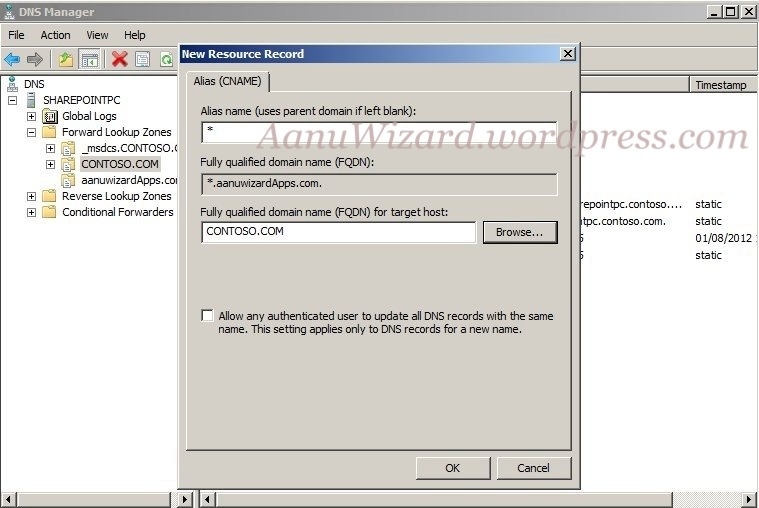
When an app is provisioned, it needs a unique DNS domain name (for example, in my case :http://app-ef2c916a38e2fe.aanuwizardapps.com). You need a wildcard Canonical Name (CNAME) entry for your DNS domain to support these unique names.

1) Open DNS from Administrative Tools

2) Create ‘ New Zone’ by right clicking the “Forward Lookup Zones”

3) you need to create a wildcard alias record for the DNS domain name that allows for individual apps to create unique domain names within your app domain.

20120804-020632.jpg

Choose FQDN for your target host as your server domain -> same as parent; in my case it is “CONTOSO.COM”

20120804-020622.jpg

Once finished it should look like below.

20120804-020642.jpg

4) Change the URL settings as per your preference in Central Administration -> Apps -> Configure App URLs.

20120804-020612.jpg

Create a Developer Site (As you can only deploy your Apps to Developer site)

Now you are through to deploy the Apps on your development server!!

References for this article :

http://msdn.microsoft.com/en-us/library/office/apps/fp179923%28v=office.15%29

http://technet.microsoft.com/en-us/library/fp161236%28v=office.15%29.aspx