Article 4 from 30 : Understanding default template for SharePoint hosted Apps

This post is article 4 from the 30 Articles App series for SharePoint

Understanding the Canvas for painting your App


This was the title I was going to give but for the sake of Search engine *discipline* I have not 😉

Let’s start today with the default template that we get for SharePoint Hosted App in SharePoint 2013.
What do you need for this article : SharePoint 2013 + development tools – Visual studio 2012 on your Dev machine.

Step – 1 : Create SharePoint hosted app with the default template.

Visual studio 2012-> create new project-> select Apps from SharePoint 2013 under SharePoint->Apps

choose SharePoint hosted from the hosting options.

20120923-175124.jpg

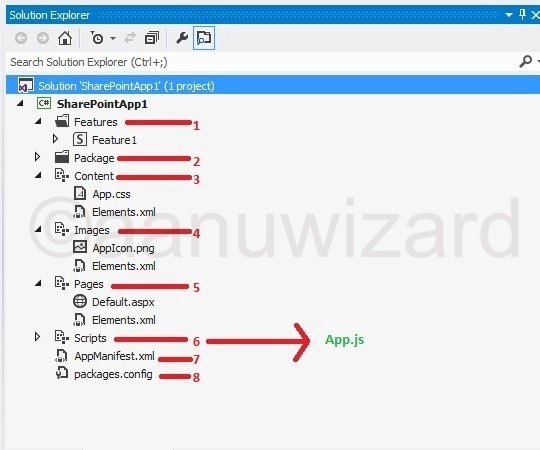
Step – 2:  Understanding each part

20120923-175116.jpg

1 Feature

This folder has all the features.

2 Package and 8 Package.config

Package folder has all the necessary files required to deploy your App.

Packaging in Visual Studio 2012 has a great improvement with NuGet. Packaging take care of bringing the latest resources via Package.config file.

3 Content

App.css – brings custom styling to your App

4 Images

Add your custom images here..

AppIcon.png :this is icon for your App.

5 Pages

Default.aspx -> This is the landing page for your App web.

Our default page simply make a call to SharePointReady() function when DOM is ready and sp.js is loaded.

20120923-175134.jpg

6 Scripts

If you expand the Scripts node you will find some jQuery files and App.js

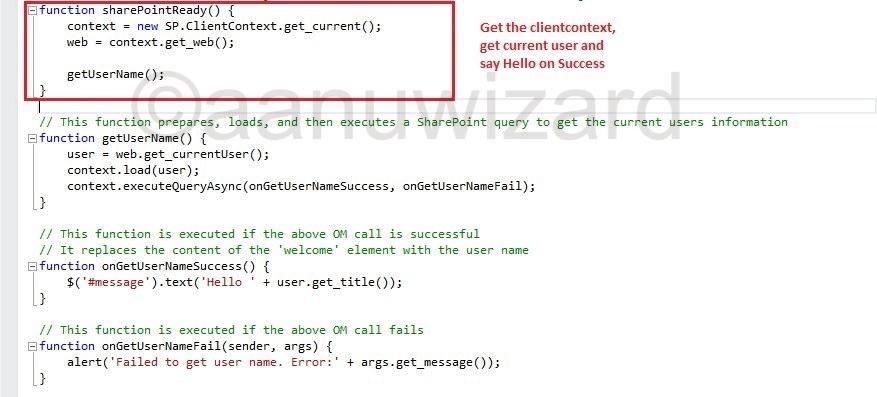
In App.js get down to function: “SharePointReady()
20120923-175159.jpg

It gets the current user name and says Hello !!

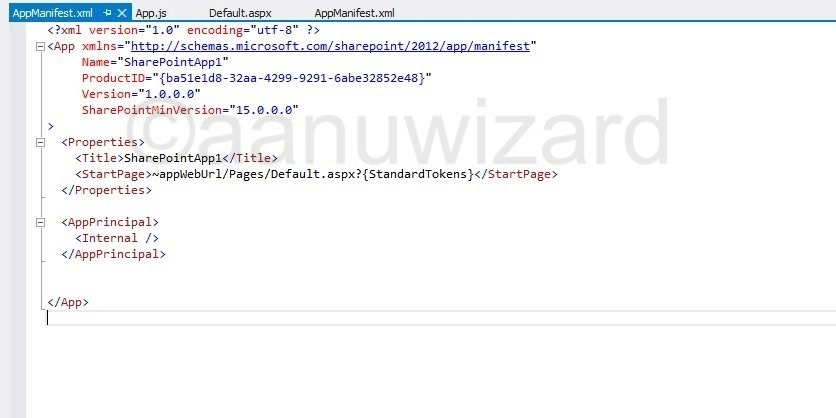
7 AppManifest.xml

This is the file that will register your App within SharePoint environment.

You will get configuration settings to choose App Icon, Title , Properties and what sort of access this App will have within SharePoint site.

You will also get designer for this file.

Code View :
20120923-175143.jpg

Designer View

20120923-175150.jpg

I hope you have enjoyed today’s article.

Start creating an App of your choice and play with it until we meet again for the next Article(5):)

Note: This article is written for SharePoint 2013 preview.

Article 3 from 30 : How to get an App from Office Store for on-premise SharePoint 2013 environment

This post is article-3 from the 30 Articles App series for SharePoint.

Getting the clouds down right into your business

This was the title I was going to give to this article but for sake of Search engine *discipline* I have not 😀

In this post, I will discuss about how we can connect to the Office store from our on-premise SharePoint 2013 Environment and get some Apps.

There are two reasons to pick this topic :

1 )  I want you all to experience the office store and some of the free apps there. 😀
This will give a boost in our mission for this series and a little bit of idea what can we develop as an App for SharePoint 2013.

2 )   I see there are many sharepointers who have not yet experienced this and some of them still have trouble getting this working for on-premise environment.

At the end of this article you should be able to download and install some Apps from the SharePoint / Office store.

Step – 1 :

Any prerequisite for this article ?? yes ,  Article-2: Behind the scene : Configure App Domain for on-premise SharePoint 2013 development environment

No you can’t skip this,  Go back if you have not finished yet !!

Step – 2 :

Check that below services are started and running

Go to Central Administration ->  Manage Services on this server

1) App Management Service.  2) Secure Store Service

Go to Central Administration -> Manage Service Application

App Subscription service

Step – 3 : 

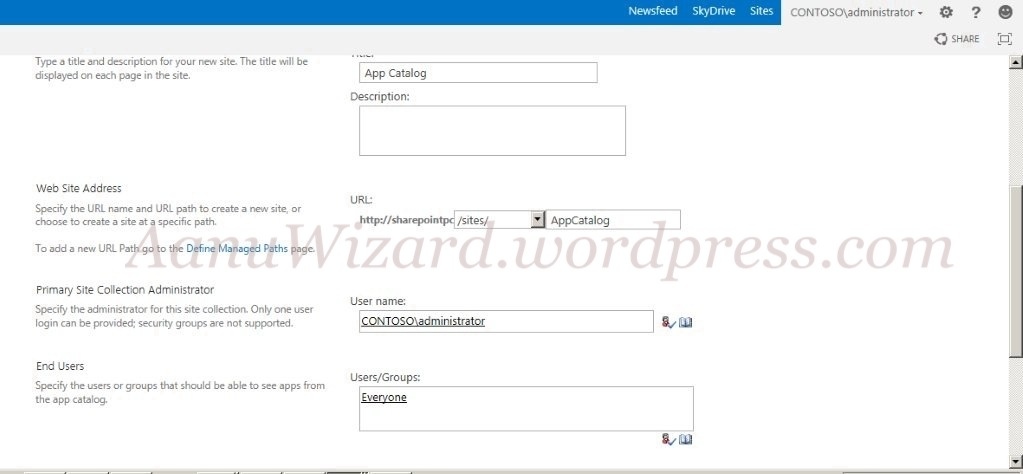
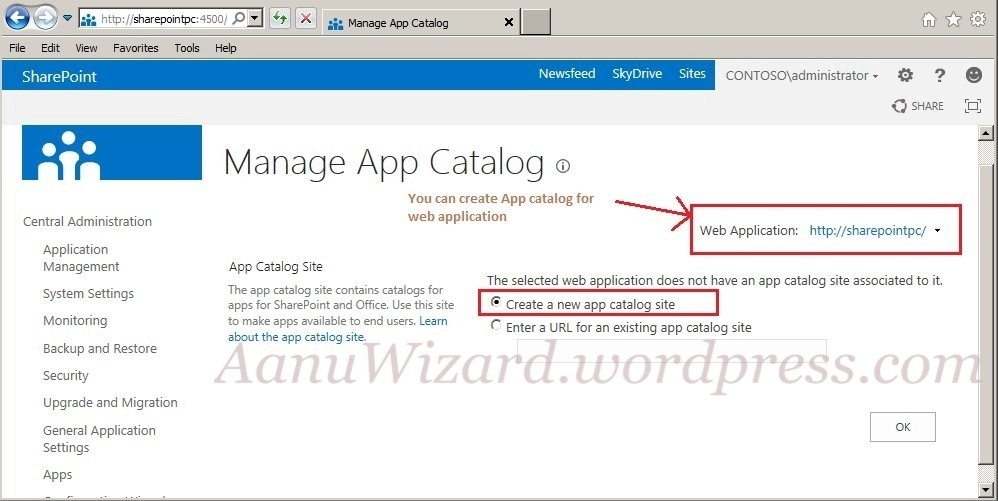
Creating App Catalog site collection.

The App Catalog site is a special site collection which is scoped to web application. All apps that you want to make available for a web application have to be in the App Catalog site collection for that web application.

Go to Central Administration -> Apps -> App management -> Manage App Catalog

Step – 4 :

Connecting to Office App Store finally

Go to App Catalog -> right corner ‘Settings’-> Add an App

Select SharePoint Store from Left Navigation [ This will take you to the Microsoft’ official Office store. ]

If you are getting below error then choose language and currency.

Again error !! All the apps are disabled this time with the message contact your administrator…!!

You need to log-in with valid Microsoft account (new name for live ID ) !! Ok now we are ready to explore the App store!! 🙂

Question of the article : Can we use the existing App Catalog for more than one web application ? If yes, are there any limitations or drawback for doing it ? If you figure out the answer or you have an opinion please share in comments.

I leave you now, have some fun with the App Store till we meet again for the next Article (4) 🙂

Note: This article is written for SharePoint 2013 preview.
30 Articles series for Apps development for SharePoint

With new release of SharePoint 2013, I guess every sharepointer can now endeavor to develop their own apps.

This post is an announcement to tell you that I am going to write a series of 30 articles for developing Apps for SharePoint.

The aim for this series is to help building Apps and here I will focus on some development and design issues of Apps for SharePoint.

I have no plans how I will arrange the series but if you want to join this journey then stay tuned. I only wish that we all have some fun, some learning and we end up creating some amazing Apps.

I will be picking interesting questions from twitter, Facebook page, emails and questions from Microsoft forums as well.

I am inviting you all to share your opinions and expertise on any relevant subjects so this series gets more interesting.

Let’s Begin then

Article – 1: An insight to Apps and App Model in SharePoint 2013

Understand what an App Model for SharePoint 2013 is.

Article – 2: Behind the scene : Configure App Domain for on-premise SharePoint 2013 development environment

Get ready with your development environment.

Article – 3: How to get an App from Office Store for on-premise SharePoint 2013 environment

get some free Apps from the official App store and have fun 😀

Article – 4: Understanding default template for SharePoint hosted Apps

Article – 5: Deploying an App to SharePoint 2013 and dealing with deployment issue aka preview bug.

Article – 6: Benefits of SharePoint 2013 App Model with an Entrepreneur’s eye

Article – 7: What is TypeScript? Shall I use it for SharePoint 2013 Apps?

Article – 8: Creating an App-Part for SharePoint 2013 Apps

Article – 9: Is it possible to create Mobile App for the SharePoint 2013 app web?

Article – 10: Creating an Custom Action for SharePoint 2013 Apps

Article – 11: Understanding default template for provider-hosted and Auto-hosted apps

Article – 12: How to use MVC web project for auto-hosted and provider-hosted SharePoint apps

Article – 13: How to use Chrome Control for SharePoint app

Article – 14: System account can not deploy or purchase an app in SharePoint 2013 RTM

Article – 15: Configuring Server to Server High Trust for provider hosted apps

Article – 16: Using Remote Receivers to handle app events

Article – 17: Using Remote Receivers to handle spappweb list/listItems events

Article – 18: Tenancies and app scope for SharePoint Apps

Article – 19: Understanding Cross Domain calls

Article – 20: Implementing Cross Domain calls

Article – 21: What can be included in SharePoint App?

Article – 22: Troubleshooting Provider-Hosted App

Article – 23: Troubleshooting High-Trust App

Article – 24: App permissions – I

Article – 25: App permissions – II

Article – 26: App authorization

Article – 27: updating an app

Article – 28: handling App Upgraded event

Article – 29: SPC14 summary on App Development

Article – 30: Licensing your app